

Connections: OpenAI Compatible Endpoints [BETA]
What is Connections?
Connections is a fresh feature that dropped in December 2025 (currently in Beta). Basically, it lets you hook up OpenAI compatible endpoints right into your Triplo AI setup. Pretty neat, right?
Availability
This feature is open to all Triplo AI users. Since it's still in Beta, here's what you should know:
Currently available: Desktop clients only
Current limitation: No streaming support yet
Coming soon: Support for other devices with enhanced features
Don't worry though, we're working on expanding it!
Setting Up Your Connection
Alright, let's get you set up. It's actually pretty straightforward.
Check out this quick video showing how to create a Connection: https://go.triplo.ai/connections_short
Step 1: Access Control Center
First things first, head over to your Control Center at https://control.triplo.ai and log in.
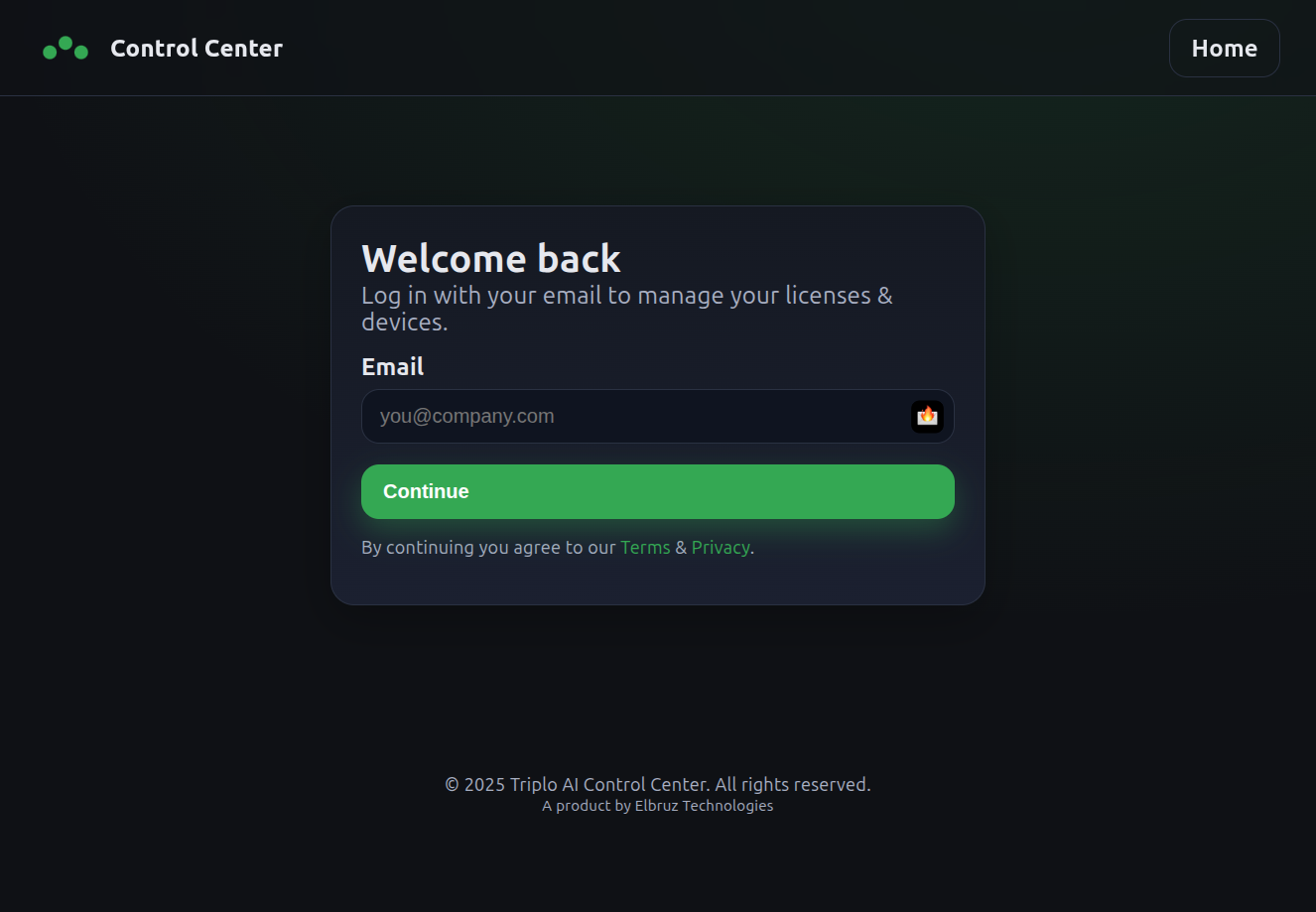
Step 2: Select Your Device
Once you're in, navigate to your devices list and pick the device you want to configure. Hit that MANAGE button.
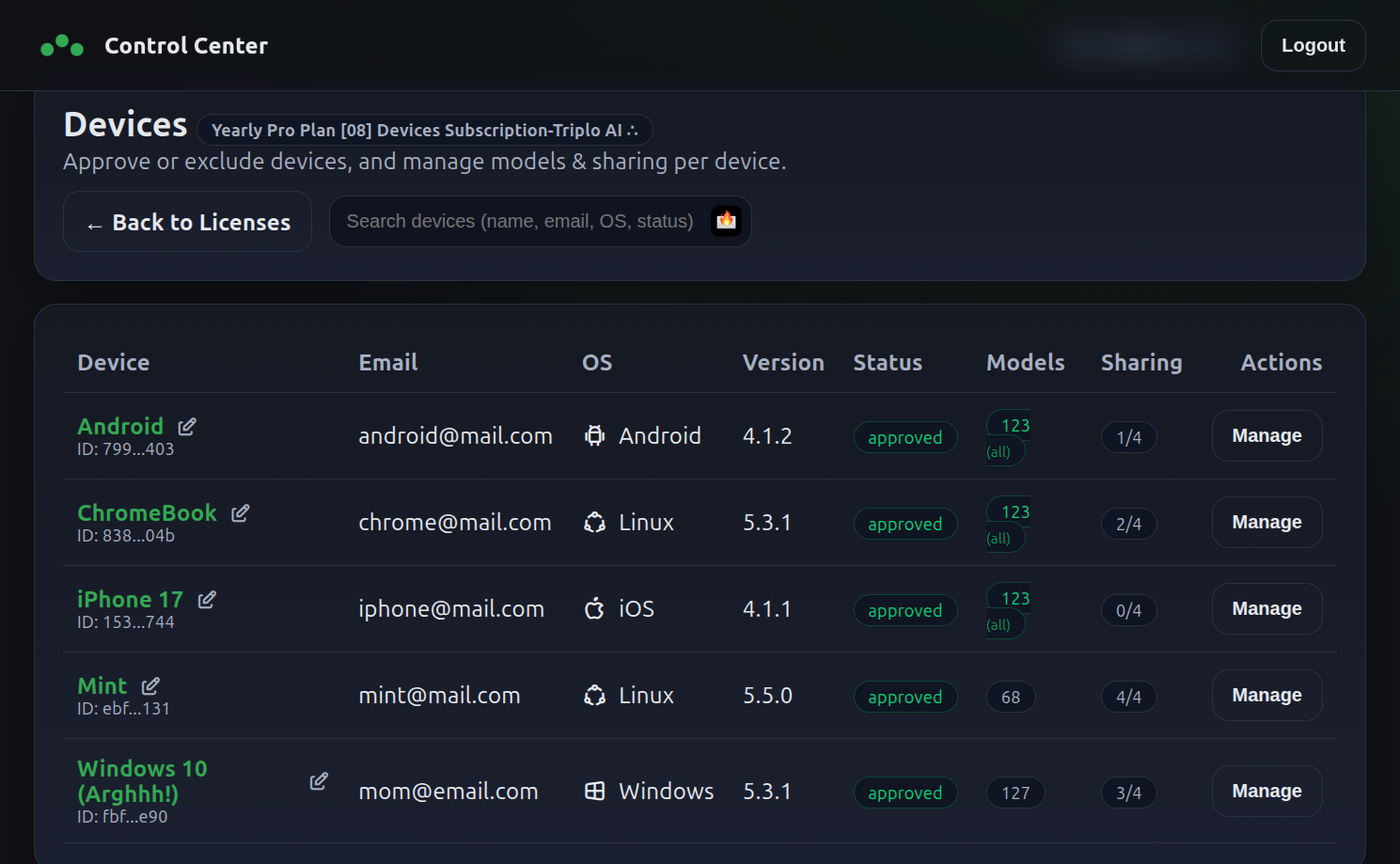
Step 3: Find Connections Section
Scroll down until you spot the Connections [BETA] section.
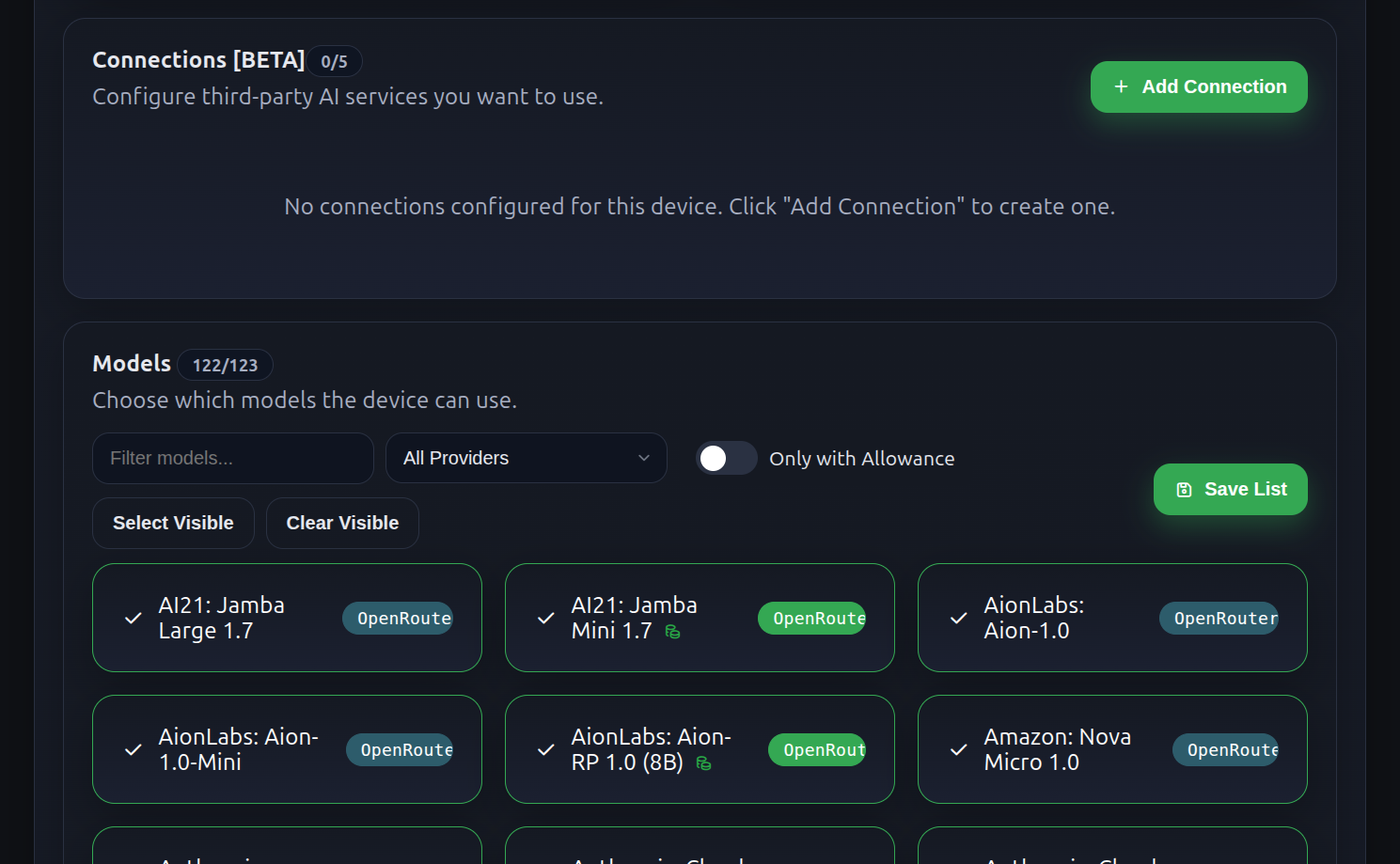
Step 4: Add New Connection
Click on "ADD CONNECTION" and a pop-up will appear.
Fill in these fields:
Name: Whatever you want to call this connection (make it something you'll remember!)
Endpoint URL: The API endpoint (example:
https://example.com/api)API Key: Your authentication key (example:
sk-...)

When you're done, click SAVE.
Popular OpenAI Compatible Providers
Not sure which service to use? Here are some popular options that work great with Triplo AI:
Provider | Base URL |
|---|---|
OpenAI |
|
Groq |
|
OpenRouter |
|
Cerebras |
|
Straico |
|
Z.AI |
|
Together AI |
|
Opper AI |
|
Anyscale |
|
Moonshot |
|
Mistral AI |
|
LLM Gateway |
|
Note: Perplexity is not following OpenAI Compatibility standard, as it fails to provide a list of models upon API validation. While the connection is established, it does not provide it’s models list because. This limitation hinders the proper functioning of the Perplexity endpoint within Triplo AI.
Selecting Models
After saving your connection, you'll see it linked to your device.
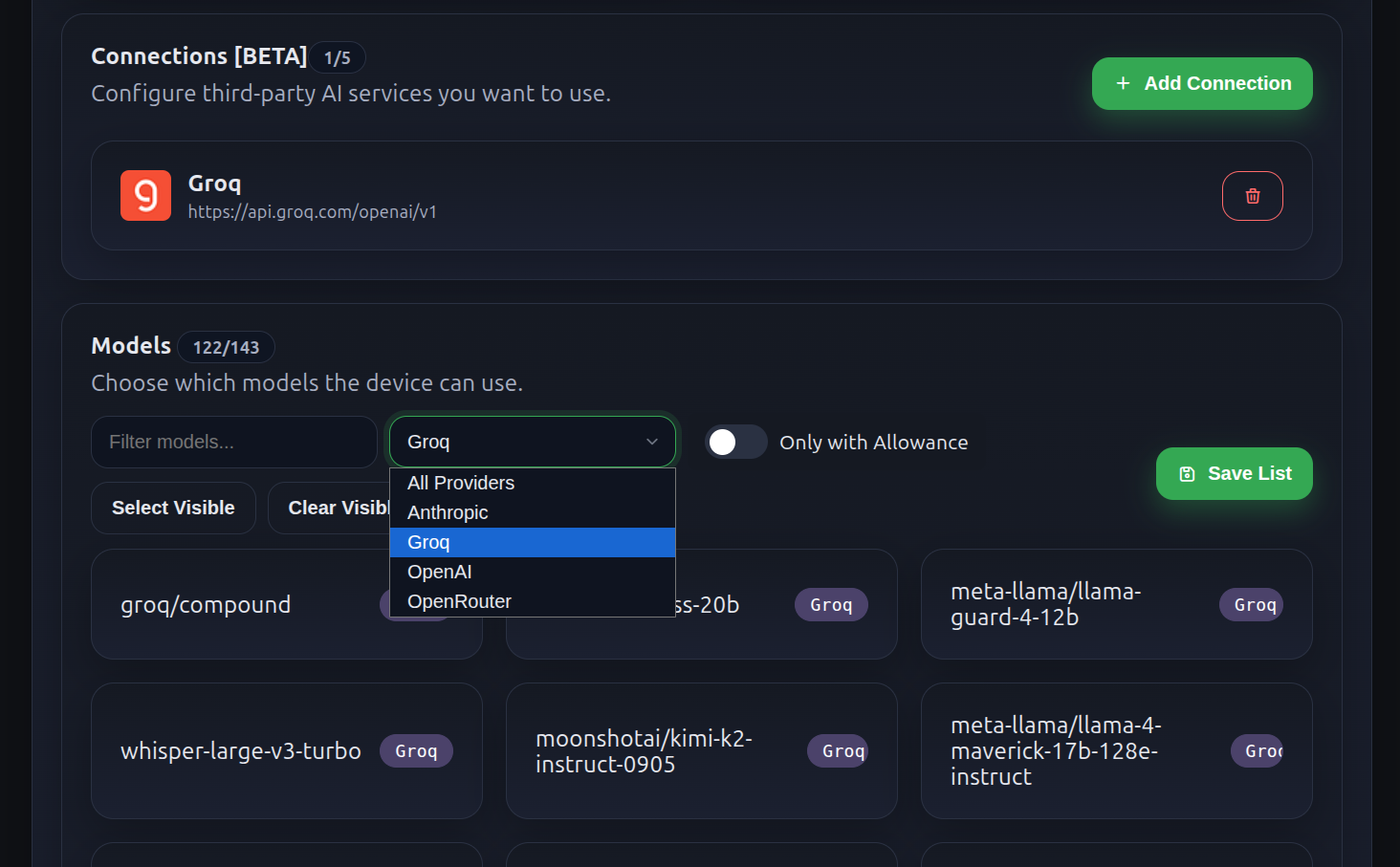
Now, head to the Model Selection section:
Pick your new Connection from the dropdown list
Select which models you want to add to your device
Click SAVE
Final Steps
Your Triplo AI client should update the model list right away. If it doesn't show up immediately, just restart your client by pressing CTRL+SHIFT+R.
That's it! You're all set.
Enjoy exploring the new connections and have fun with different models!