

Magnets: Snap Models, Instructions, Minds, and Automations directly to your SmartPrompts
Overview
Welcome to Magnets, one of the biggest features we've released since Awareness. This is a true game-changer (no AI bla bla bla) for how you work with Triplo AI.
Magnets is a powerful SmartPrompts feature that lets you "snap" specific Models, Instructions, Minds, and Automations directly to your Custom SmartPrompts. Whenever you fire up a SmartPrompt with Magnets, you bring your entire setup to life instantly and get AI to deliver exactly the results you've been hoping for.
Why Magnets is genuinely valuable:
Save serious time - Prompting with Magnets is 3x to 4x faster than manually picking the right features every time
Nail your results consistently - Get perfect outputs thanks to the right Model, proper Instructions, Minds, and Automations working together from a single prompt
Save money - Pair simple models with simple prompts and complex models with complex tasks, optimizing your token usage
Think of Magnets as creating your own custom AI configuration that activates instantly whenever you need it. No more repetitive setup, feature selection, no more forgetting which settings work best. Just prompt and go.
What Can You Snap with Magnets?
Magnets lets you automatically associate these features with your Custom SmartPrompts:
Models - Choose which AI model processes your prompt (optimize for speed, quality, or cost)
Instructions - Set tone, style, and formatting preferences
Minds - Apply your custom trained knowledge bases
Automations - Trigger automated workflows (either through the main interface or hotkeys)
How to Set Up Magnets
Setting up Magnets is super straightforward. Here's how:
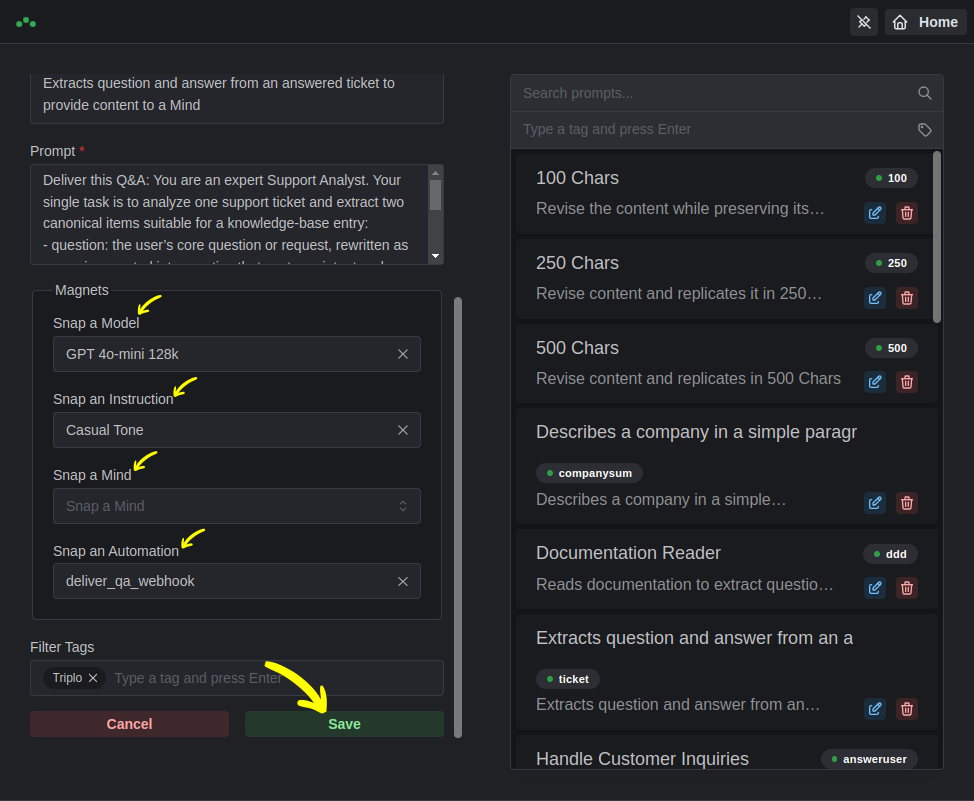
Step 1: Open Your Custom SmartPrompt Editor
Navigate to your Custom SmartPrompts editing interface.

Step 2: Create or pick a SmartPrompt to Edit
May be a new Custom SmartPrompt or an existing one.

Step 3: Choose which features you want to “snap” to your SmartPrompt
You can select any combination of Models, Instructions, Minds, and Automations that make sense for your use case.

Step 3: Save Your Configuration
Hit the SAVE button and you're done! Your Magnets configuration is now ready to use.
How to Use Magnets
Once you've configured Magnets on a Custom SmartPrompt, using it is effortless.
At the Main Interface
Simply activate Magnets by

Then use your Custom SmartPrompt as you normally would. When Magnets is active, you'll see it automatically apply your selected features. Check it out https://youtu.be/kOhtk_AvVNY
What happens when you prompt:
You enter your Custom SmartPrompt with Magnets active
Magnets instantly activates your selected Model, Instruction, Mind, and/or Automation
AI processes your prompt with all these features applied
You get your results
Triplo AI automatically returns to its original state (before Magnets activated)
This means Magnets won't interfere with your other work. It's a temporary, smart configuration that applies only when you want it.
Using Magnets with Hotkeys
You can also trigger Magnets-enabled Custom SmartPrompts through Hotkeys for even faster access.
Important note: Now Automations will execute instantly via Hotkeys. Note that hotkey-triggered Automations bypass the confirmation step and deliver results directly to your designated API or Webhook.
Where to Use Magnets
Main prompting interface (full functionality)
Hotkeys (Automations excluded)
Practical Example: Creating an IMPCASUAL SmartPrompt
Let's walk through a real-world example to see Magnets in action.
Scenario: You want to create content that's improved by AI, uses your Triplo AI Support knowledge base, and always comes out in a casual, friendly tone.
Here's how to set it up:
Get the base SmartPrompt
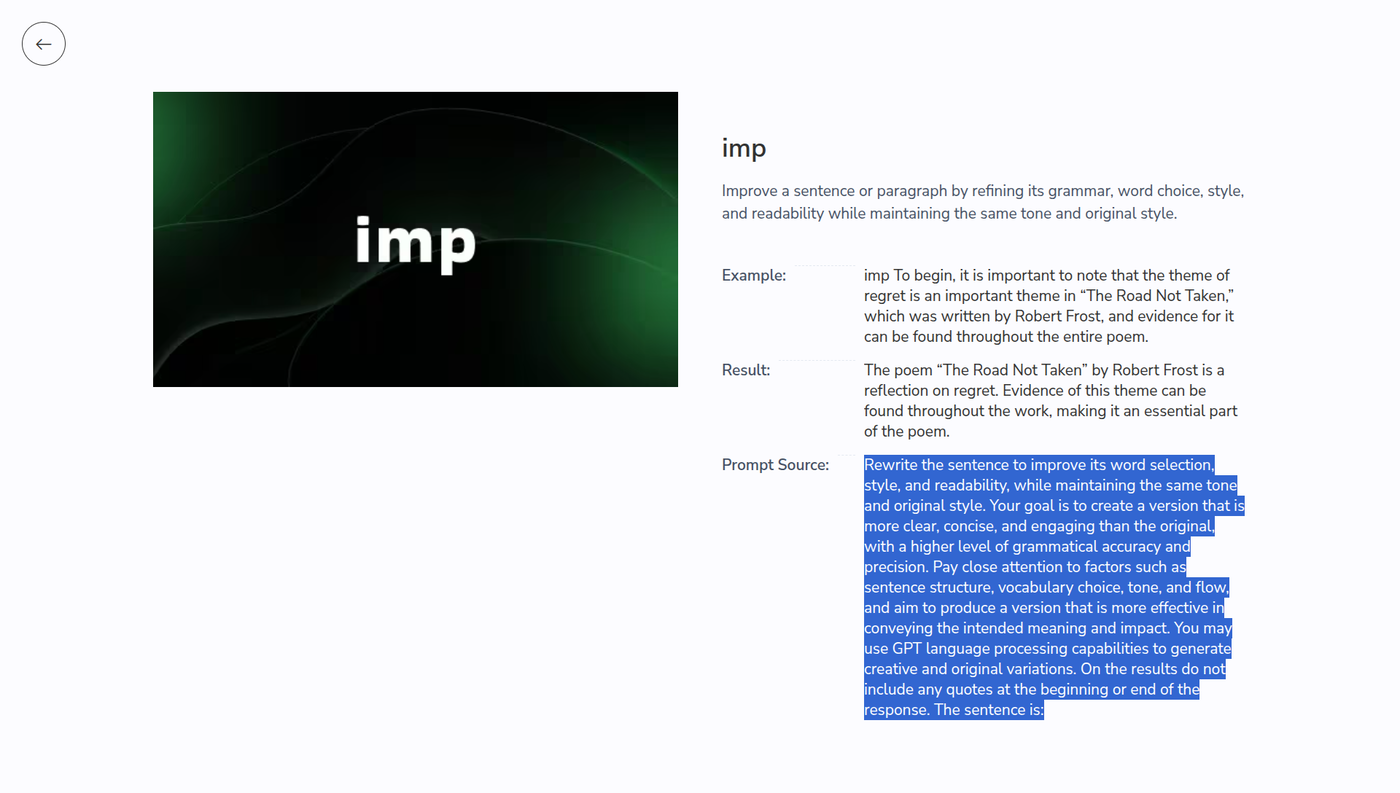
Visit https://smartprompts.triplo.ai/item/imp and copy the IMP SmartPrompt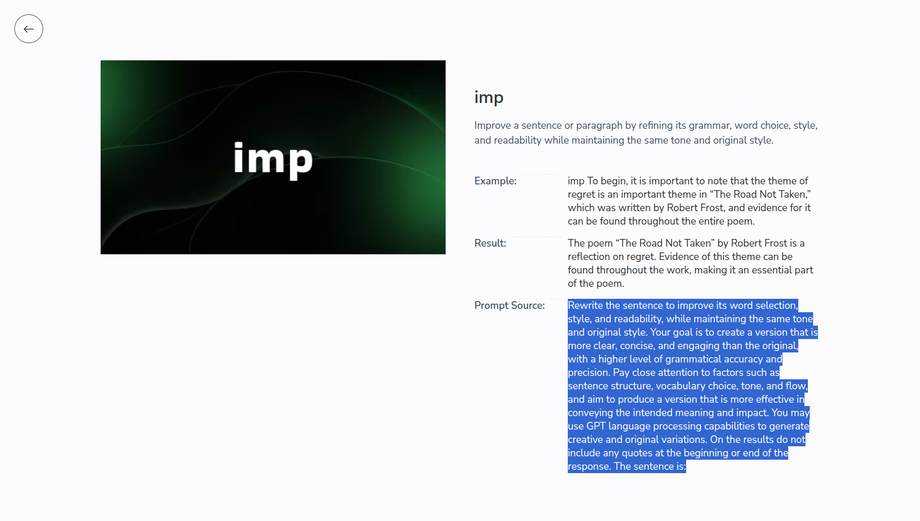
Create your Custom SmartPrompt
Make a new Custom SmartPrompt and name it "IMPCASUAL"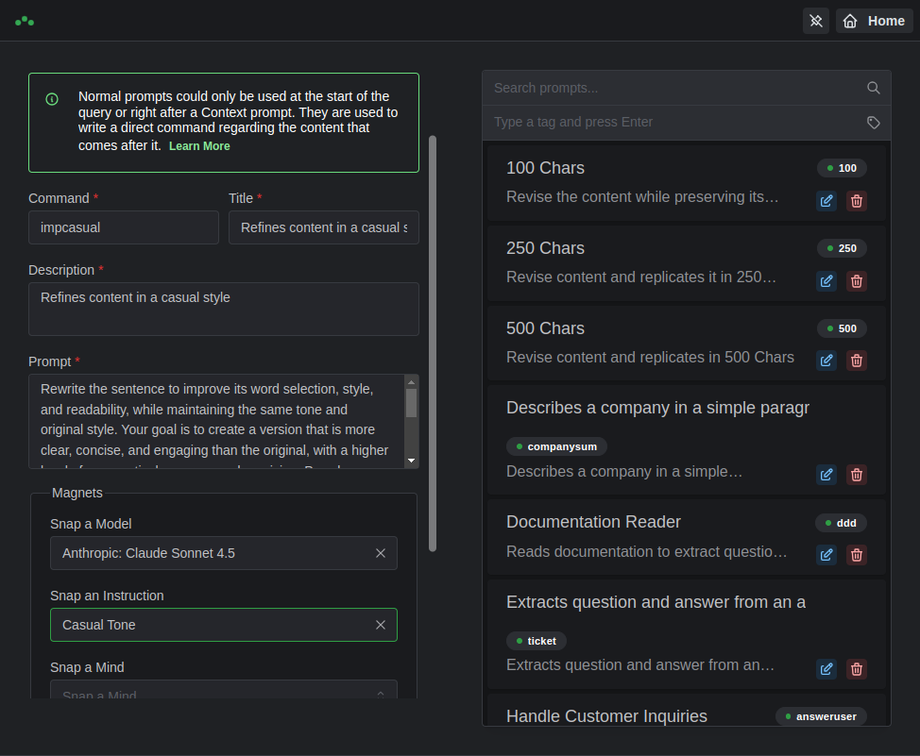
Configure your Magnets
Select these features:Model: Anthropic Claude Sonnet 4.5
Instruction: Casual (for friendly tone and style)
Save it
Hit save and you're ready to go!
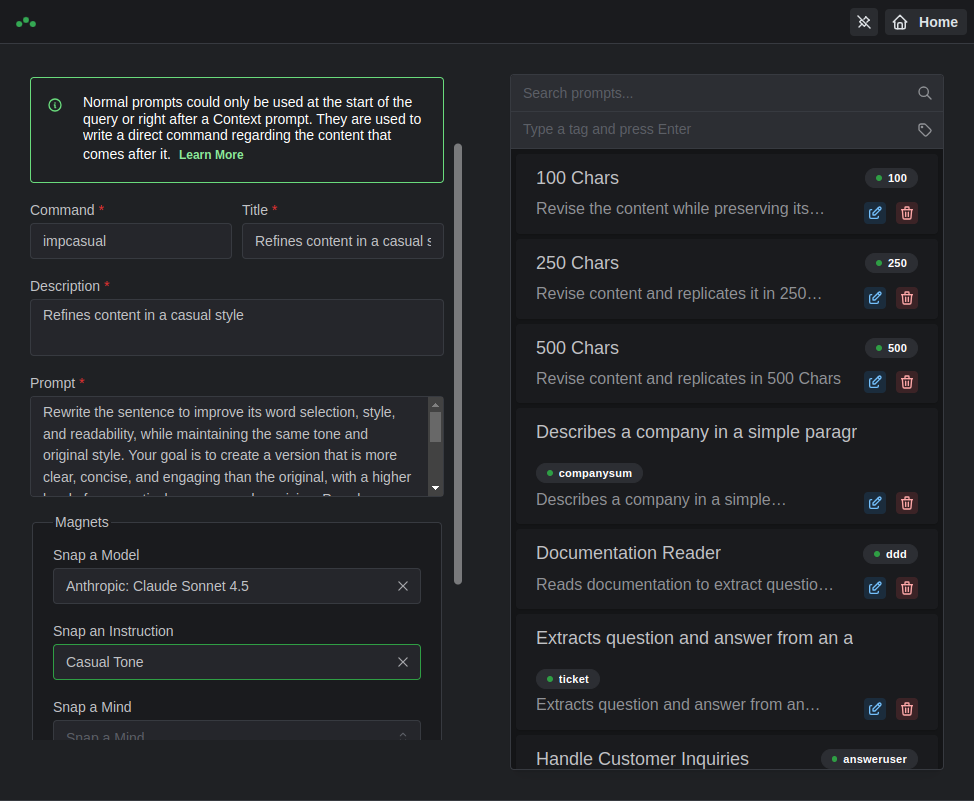
Using your new IMPCASUAL SmartPrompt:
Now whenever you want casual, knowledge-enhanced content, just type "IMPCASUAL" in the prompting interface or trigger it via Hotkeys. All your selected features activate automatically.
Real-World Use Cases
Here are some powerful ways to use Magnets:
Content Creation Workflow
Snap a casual Instruction + your brand Mind + a cost-effective Model for quick social media posts
Use a different SmartPrompt with formal Instruction + industry Mind + premium Model for client reports
Development Tasks
Create a "DEBUG" SmartPrompt with coding Instruction + technical documentation Mind + fast Model
Build a "REVIEW" SmartPrompt with thorough Instruction + codebase Mind + advanced Model
Customer Support
Set up a "SUPPORT" SmartPrompt with friendly Instruction + product knowledge Mind + Automation to log tickets
Configure a "FAQ" SmartPrompt with concise Instruction + help docs Mind + efficient Model
The possibilities are endless. Mix and match to create the perfect setup for each task you do regularly.
Using Magnets with General SmartPrompts
Want to add Magnets to one of Triplo's general SmartPrompts? No problem!
We've open-sourced all our SmartPrompts, which means you can grab any of them and create your own customized version with Magnets.
Here's how:
Find the SmartPrompt you want to customize
Copy the prompt source
Create a new Custom SmartPrompt with that source
Add your Magnets configuration
Save and enjoy your personalized version!
This gives you total flexibility to adapt any existing SmartPrompt to your specific workflow and preferences.
Key Things to Remember
Magnets only works with Custom SmartPrompts - You'll need to create your own Custom SmartPrompt to use this feature
Automations now WILL WORK via Hotkeys - But remember: there is no confirmation step.
Temporary activation - Magnets applies your configuration only for that specific prompt, then returns everything to normal
Mix and match - You can select any combination of Models, Instructions, Minds, and Automations that work for your needs
Optimize for cost - Use lighter models for simple tasks and save your advanced models for complex work
Troubleshooting
Magnets isn't activating my features
Make sure Magnets is turned on at the main interface
Double-check that you saved your Magnets configuration
Verify you're using a Custom SmartPrompt (not a general one)
My Automation isn't running
Make sure you're actually using the trigger words from the Automation you picked in your prompt. Usually, words that match up with the Automation's name or description tend to work way better.
I want to modify a general SmartPrompt
You can't add Magnets directly to general SmartPrompts, but you can copy them and create your own Custom version (see "Using Magnets with General SmartPrompts" above)
How do I know which Model to use?
Start with a mid-tier model and adjust based on results. Simple tasks work great with faster, cheaper models. Complex reasoning or creative work benefits from advanced models. Learn more about models at our Model Selection tool at https://models.triplo.ai/
Get Started with Magnets
Magnets is all about making your Triplo AI experience smoother, faster, and more powerful. Whether you're creating content, analyzing data, or automating workflows, Magnets helps you work smarter by bundling your favorite features together.
This feature has huge impact on your Triplo AI experience. Give it a try and see how much time you can save while getting better, more consistent results.
Happy prompting! 🧲